
Essential
Projector
Choose brightness and lens geometry for the lane, not marketing claims alone.
- 1080p native resolution
- At least 3,500 ANSI lumens
- Throw ratio suited to your measured distance
Get your venue up and running with AxeScorer in minutes.
After purchasing your subscription you can create as many lanes as you've subscribed for. Each lane gets its own projected board and scoring tablet.
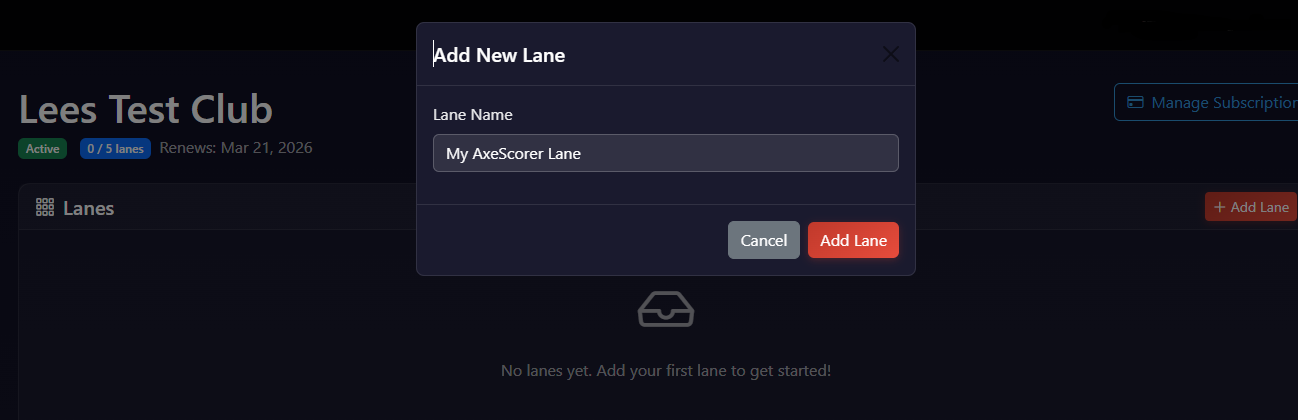
From your dashboard, click Add Lane and give it a name.
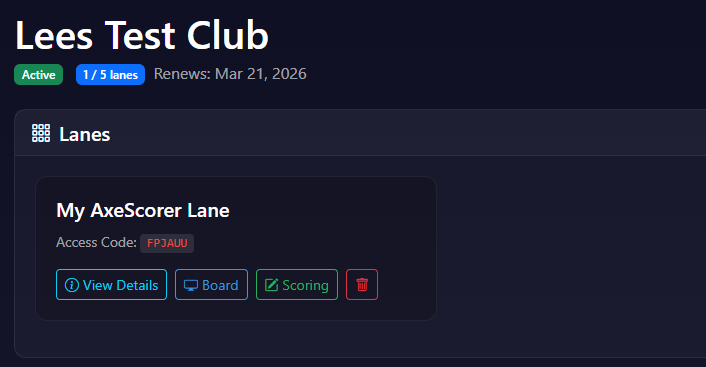
Click on your new lane card to open the details. You'll see two URLs and a secret code.
Open the Board URL on your projector's browser. Open the Scoring URL on your tablet.
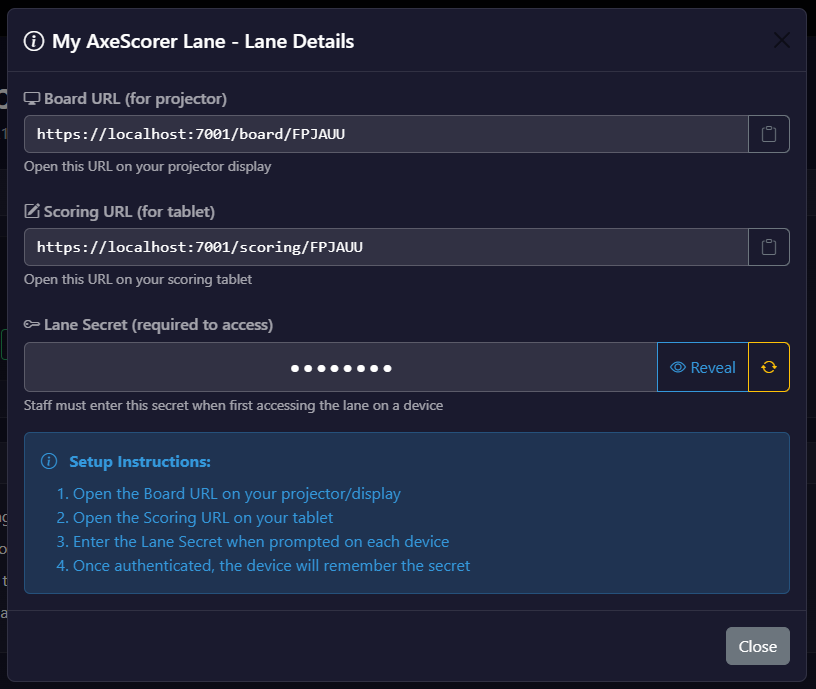
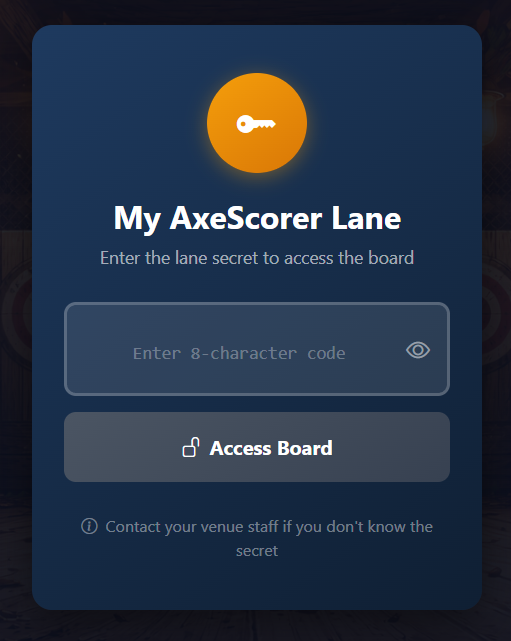
Both devices will ask for a secret code. Enter the code shown in your lane details. It's the same for both devices.
Both devices now show the game selection screen. The board and scoring tablet are linked in real time.
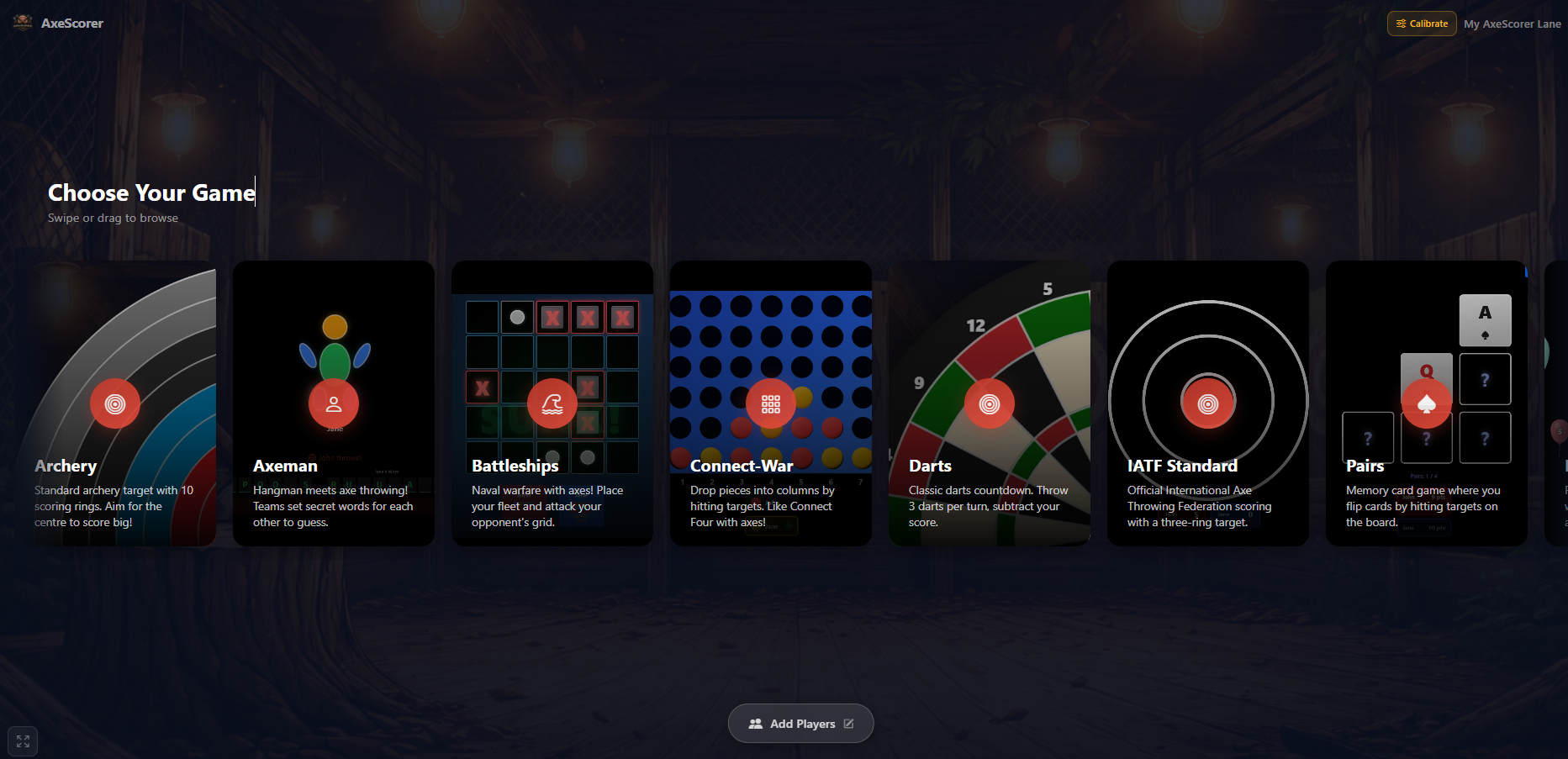
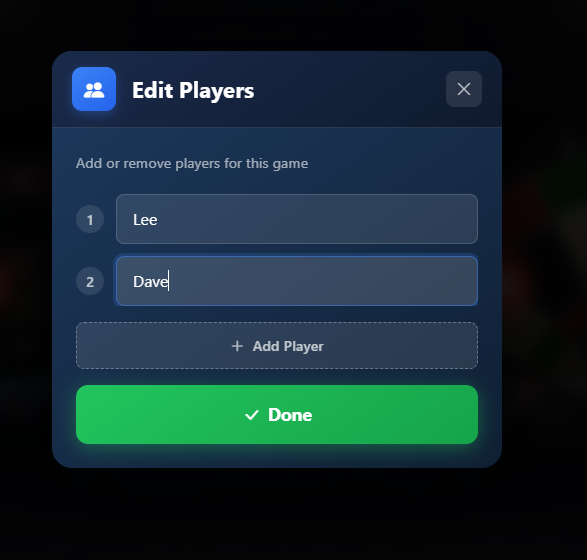
Tap Add Players on the scoring tablet. Enter up to 10 player names. For 1-on-1 games, players are automatically assigned to red and blue teams.
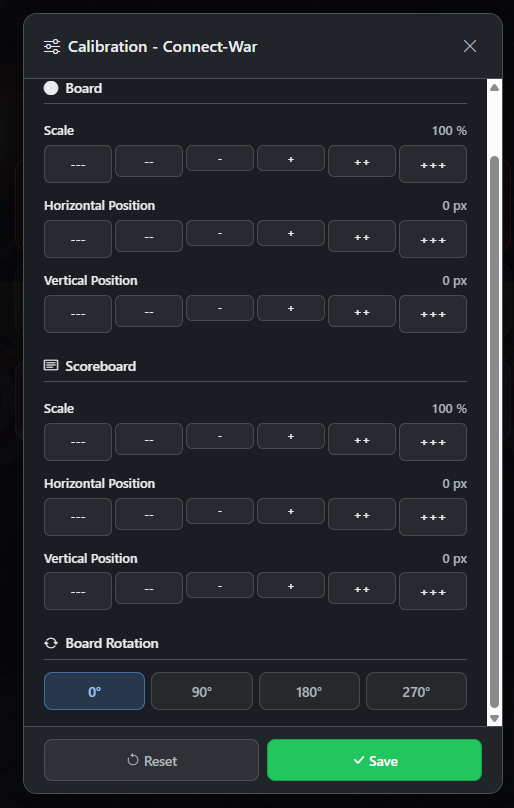
If the projected target doesn't line up with your physical target, tap Calibrate in the top right. Adjust the position, size, and rotation for each game type. Calibration is saved per lane.
Accept online bookings and payments directly through your website. Powered by Stripe Connect and available in all EU/EEA countries, the UK, US, Canada, Australia, and more.
From your dashboard, click Online Bookings then Enable Bookings.
Select your business country and click Connect Bank Account. Stripe will guide you through their secure onboarding to verify your identity and link your bank for payouts. If you select the wrong country, use "Cancel & Start Over" to begin again.
Go to the Sessions tab. Create your session types, for example "Standard Session" or "Private Group". For each, set the duration, price (per person or per session), minimum group size, and maximum capacity.
Still on the Sessions tab, add sessions to each day of the week. Pick the session type and start time. Your schedule repeats weekly. For holidays or closures, add date overrides.
On the General tab, set your booking page URL, timezone, currency, lead time, and how far ahead customers can book. On Payments, add tax rates and per-participant discounts. Use Gift Cards to issue promotional, legacy, or paid cards and manage their balances. On Waivers, optionally enable digital waivers that are emailed to participants automatically.
Copy the Booking Page URL from the General tab and add the link to your website. Customers can use the hosted page to browse available sessions, book, and pay online.
AxeScorer runs in a web browser, so you can build each lane with readily available hardware. These are the specifications we would look for when putting together a reliable venue setup.
Choose brightness and lens geometry for the lane, not marketing claims alone.
A rigid, adjustable mount helps the projected target stay aligned between sessions.
A compact computer behind the display keeps the board browser running independently.
A responsive 10-inch tablet gives staff and players a comfortable scoring surface.
Protect the scoring device and keep it planted at a useful angle beside the lane.
A dependable local network and short power backup reduce interruptions during busy sessions.
A compact wireless keyboard with trackpad makes maintenance easier. Floor cable covers, a laser measure and spare HDMI and Ethernet leads are also worth keeping on hand.
Browse setup accessories on Amazon USRecommendations are based on general venue requirements, not paid product placements. Product availability and specifications can change; verify compatibility and follow all electrical, mounting and lane-safety requirements before installation.
Set up your venue in minutes. No proprietary hardware required.